Revenue Summary Report
Reporting → Financials
Purpose
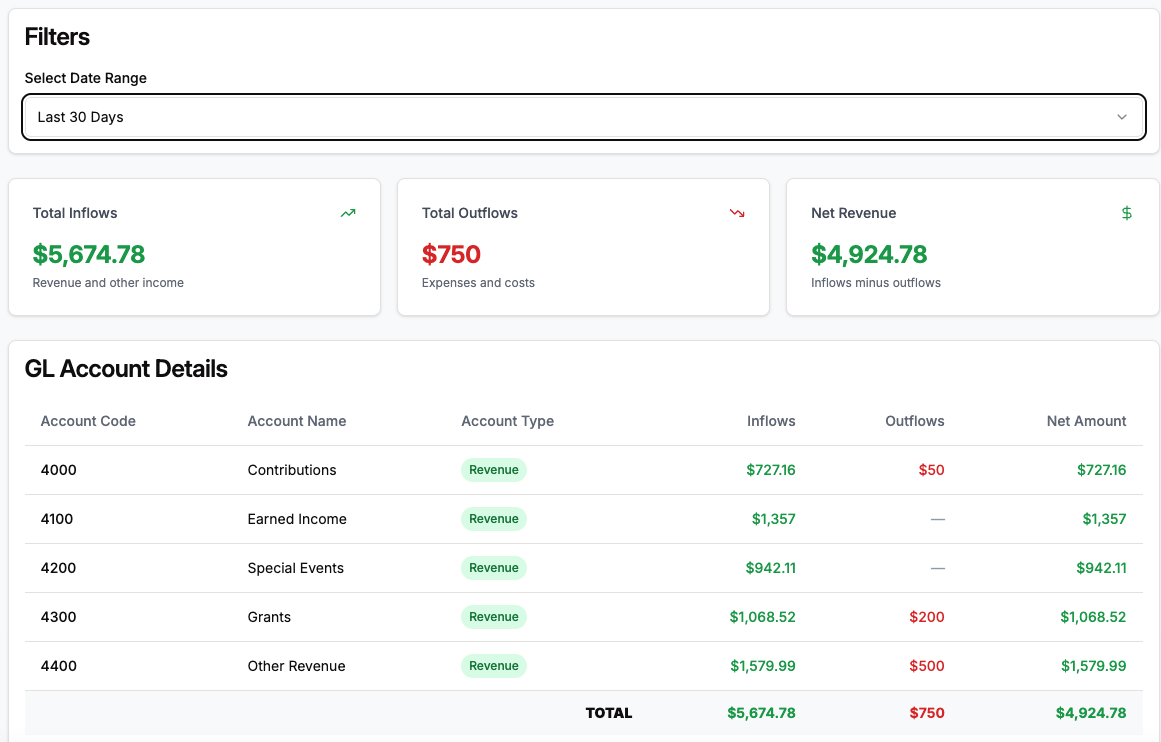
The Revenue Summary report gives you a quick health‑check of inflows and outflows for each Revenue Account in your chart of accounts. Think of it as a lightweight income statement that’s always just one click away.
Anatomy of the Report
| Section | What It Shows |
|---|---|
| Filters | Select Date Range dropdown (Today, Last 7 Days, Month‑to‑Date, Custom, etc.). |
| KPI Cards | Total Inflows (green), Total Outflows (red), Net Revenue (green if positive, red if negative). Each compares to the prior period with a tiny trend arrow. |
| Actions | Refresh to rerun the query; Export to CSV or Excel. |
| Account Code | your GL code (e.g., 4000) |
| Account Type | Currently supporting "Revenue" accounts, "Expense" and other accounts are coming soon |
| Inflows | Sum of charges during the period |
| Outlflows | Refunds or negative charges |
| Net Amount | Inflows - Outflows |
How the Numbers Are Calculated
- Inflows = Sum of positive charge amounts posted to each Revenue Account during the selected period.
- Outflows = Sum of negative amounts (refunds, credit memos) in the same window.
- Net Revenue (per account and overall) = Inflows – Outflows.
Note: This report is revenue‑only. Expenses will be covered in the upcoming Expense & Budget Tracking feature.
Running the Report – Step‑by‑Step
- Navigate → Financials → Reports → Revenue Summary.
- Pick your date range from the filter dropdown.
- Click Refresh if the report doesn’t auto‑update (useful after changing the date).
- Review KPI cards for a high‑level snapshot.
- Scroll the table to review each Revenue Account.
- Export if you need to share or reconcile in Excel/Sheets.
Tips
- Custom Range – great for board‑meeting prep (e.g., fiscal year‑to‑date).
- Drill‑Down Shortcut – click any row to jump to the Revenue Detail report pre‑filtered for that account.
- Zero Rows Hidden – accounts with no activity are suppressed to keep the table tidy.
FAQ
Why don’t I see expense accounts?
The current system only tracks revenue and contra‑revenue. Expense tracking is on the roadmap.
How does this differ from the Trial Balance?
Trial Balance shows beginning balance, debits, credits, and ending balance across all account types. Revenue Summary focuses solely on income within the selected period.
Can I change the Account Name here?
No, edit GL accounts in Settings → Accounting → Revenue Accounts. The report will update automatically.