Revenue Detail Report
Reporting → Financials
Purpose
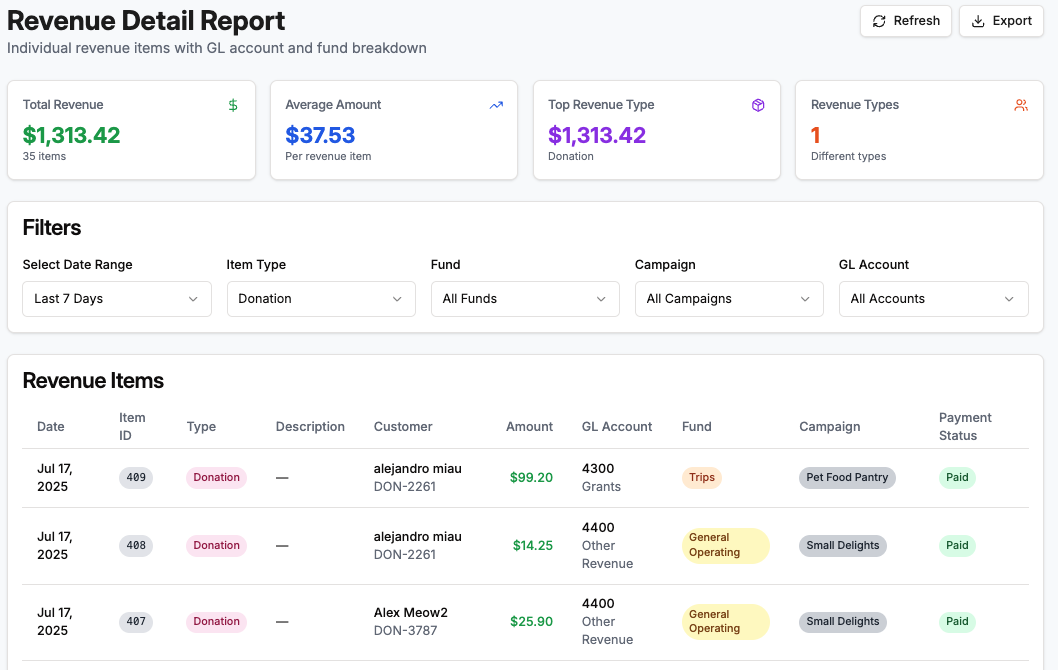
Need the nitty‑gritty? Revenue Detail is the line‑item ledger of every charge in your system—donations, tuition, merchandise, you name it—mapped to the right GL Account & Fund. Use it to:
- Reconcile deposits against accounting.
- Filter by Fund for donor‑restricted reporting.
- Spot failed or refunded payments fast.
Anatomy of the Report
| # | Section | What It Shows |
|---|---|---|
| 1 | Filters | Date Range picker (Today, Last 7 Days, MTD, Custom, etc.) plus: • Type (Donation, Purchase, Fee, etc.) • Fund selector • GL Account selector • Payment Status (Paid, Pending, Failed, Refunded). |
| 2 | KPI Cards | • Total Charges (count) • Gross Amount (sum of positives) • Refunds / Reversals (sum of negatives) • Net Revenue (Gross − Refunds). |
| 3 | Revenue Detail Table | One row per charge with columns: • Date – local timestamp. • Type – Donation, Purchase, Fee, etc. • Customer – name + ID (click to open profile). • Amount – currency; refunds show red/negative. • GL Account – code & name. • Fund – badge showing Fund tag. • Payment Status – Paid, Partially Paid, Pending, Failed, Refunded. |
| 4 | Actions | Refresh to rerun the query, Export to CSV/Excel. |
How the Numbers Are Calculated
- Gross Amount = Sum of positive charge amounts in the filtered set.
- Refunds / Reversals = Sum of negative charges (credits, refunds).
- Net Revenue = Gross Amount − Refunds.
Tip: Want to see only money actually received? Add a Payment Status = Paid filter.
Running the Report – Step‑by‑Step
- Navigate → Financials → Reports → Revenue Detail.
- Choose a Date Range and any optional filters (Type, Fund, GL Account, Payment Status).
- Click Refresh (runs automatically when filters change).
- Review KPI Cards for a quick snapshot.
- Scroll or Search (
Ctrl/⌘ + F) the table for specific charges. - Export if needed for auditors or spreadsheet power‑users.
Power Tips
- Drill‑Down from Revenue Summary – Click any revenue account in Revenue Summary to open this report pre‑filtered for that GL Code.
- Zero Rows Hidden – Charges with $0 or voided balances are hidden by default; toggle Show Voids to include them.
- Link‑Out – Click the Customer to open their profile or Invoice ID (coming soon) for full context.
FAQ
Why don’t I see expenses here?
Revenue Detail is income‑only. Expense tracking is coming with the Expense & Budget Tracking release.
Does this include offline cash/check gifts?
Yes—any recorded charge, whether processed online or entered manually, appears here.
How do I match this to my bank deposits?
Use Payment Status = Paid and match Gross or Net (depending on fees) to your payout reports. For full journal detail, run the Journal Entries report.