Journal Entries Report
Reporting → Financials
Purpose
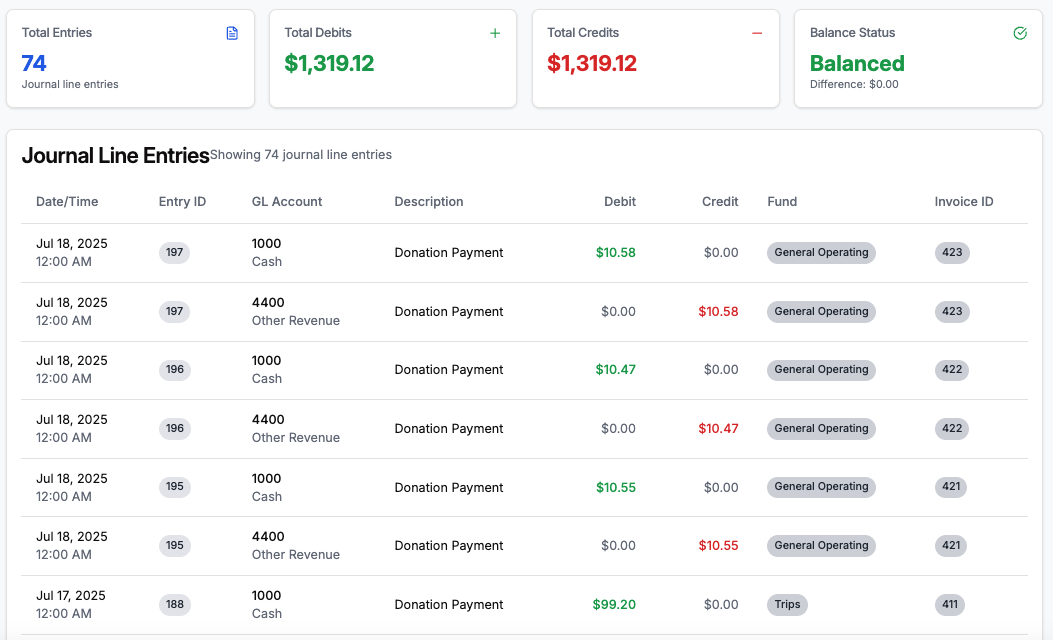
The Journal Entries report is the ledger-of-ledgers—every debit and credit the system posts, displayed line‑by‑line with rich context (Fund, Invoice, Entry ID). Use it to audit transactions, troubleshoot imbalances, or export data to your accounting platform.
Report Layout
| # | Section | What It Shows |
|---|---|---|
| 1 | Filters | Date Range picker (Today, Last 7 Days, MTD, Custom, etc.). |
| 2 | KPI Cards | Total Entries, Total Debits, Total Credits, and Balance Status (Balanced/Out of Balance). |
| 3 | Journal Line Entries Table | One row per journal line with columns: • Date/Time – timestamp of the entry. • Entry ID – unique identifier (click to see entry details). • GL Account – code & name. • Description – source action (Donation Payment, Refund, etc.). • Debit. • Credit. • Fund – shows fund tag or “—” if none. • Invoice ID – quick link to the related Invoice (if applicable). |
| 4 | Actions | Refresh to rerun the query; Export to CSV/Excel. |
How It’s Built
Every financial event (charge, payment, refund) triggers a Journal Entry consisting of two or more journal lines. This report flattens those lines so you can:
- Confirm each debit matches a credit (Balance Status).
- Trace which Fund and Invoice a line belongs to.
- Reconcile to bank statements or import into QuickBooks.
Balanced vs. Out of Balance
| Banner State | Meaning | Common Causes |
|---|---|---|
| Balanced (green) | Total debits equal total credits for the selected date range. | — |
| Out of Balance (red) | Difference column shows variance. | Manual journal import, backdated entry, or rounding bug. Run the Trial Balance to isolate date. |
Running the Report – Step‑by‑Step
- Navigate → Financials → Reports → Journal Entries.
- Select Date Range → defaults to Last 7 Days.
- Click Refresh (auto‑runs on range change).
- Review KPI cards—ensure Balance Status is Balanced.
- Scroll or sort the table (click any column header).
- Export if you need to upload to your GL system or share with auditors.
Pro Tips
- Copy Entry ID – hover and click to copy; paste into support tickets for faster help.
- Fund Filter (coming soon) – you’ll soon be able to filter by Fund for restricted‑fund audits.
- Link to Detail – click Invoice ID to open the source document in a new tab.
FAQ
Why do I see both Cash and Undeposited Funds?
Online payments post to Undeposited Funds until your payout clears; then the Automated Reconciliation feature (coming soon) will move them to Cash.
Can I edit a journal entry?
Not directly—edit or void the original charge/payment and the journals will update automatically.
My accountant needs a monthly CSV—can I schedule this?
Yes, create an Automation (Admin → Automations) to email an export on the first of each month.